Getting started
Getting started with DiscoverGap
From signing in to your first report in four steps.
DiscoverGap shows why Google Discover and Google News do, or don't, send your site traffic, and what to do about it. Getting your first report takes about a minute of your time; the import then runs by itself. The first time you sign in, a short setup walks you through these steps.
Four steps to your first report
- Sign in and pick your goalUse any Google account; signing in only shares your name and email address with us. Then tell us what you want most, such as more Discover traffic or finding out why it dropped. It decides what your Overview shows first.
- Connect Search ConsoleIn the setup (or later on the Sites page), click Continue with Google and choose the Google account that has your site in Search Console. Access is read-only. How connecting works.
- Pick your siteChoose the site from the list, and if you like, say whether it's a news site or a blog and where most readers are. If you use Google Analytics 4, pick its property too; it's optional.
- Wait for the importWe import up to 16 months of Discover, Google News and Search figures. It usually takes under an hour, and we email you when your report is ready. You can close the page.
What you'll see first
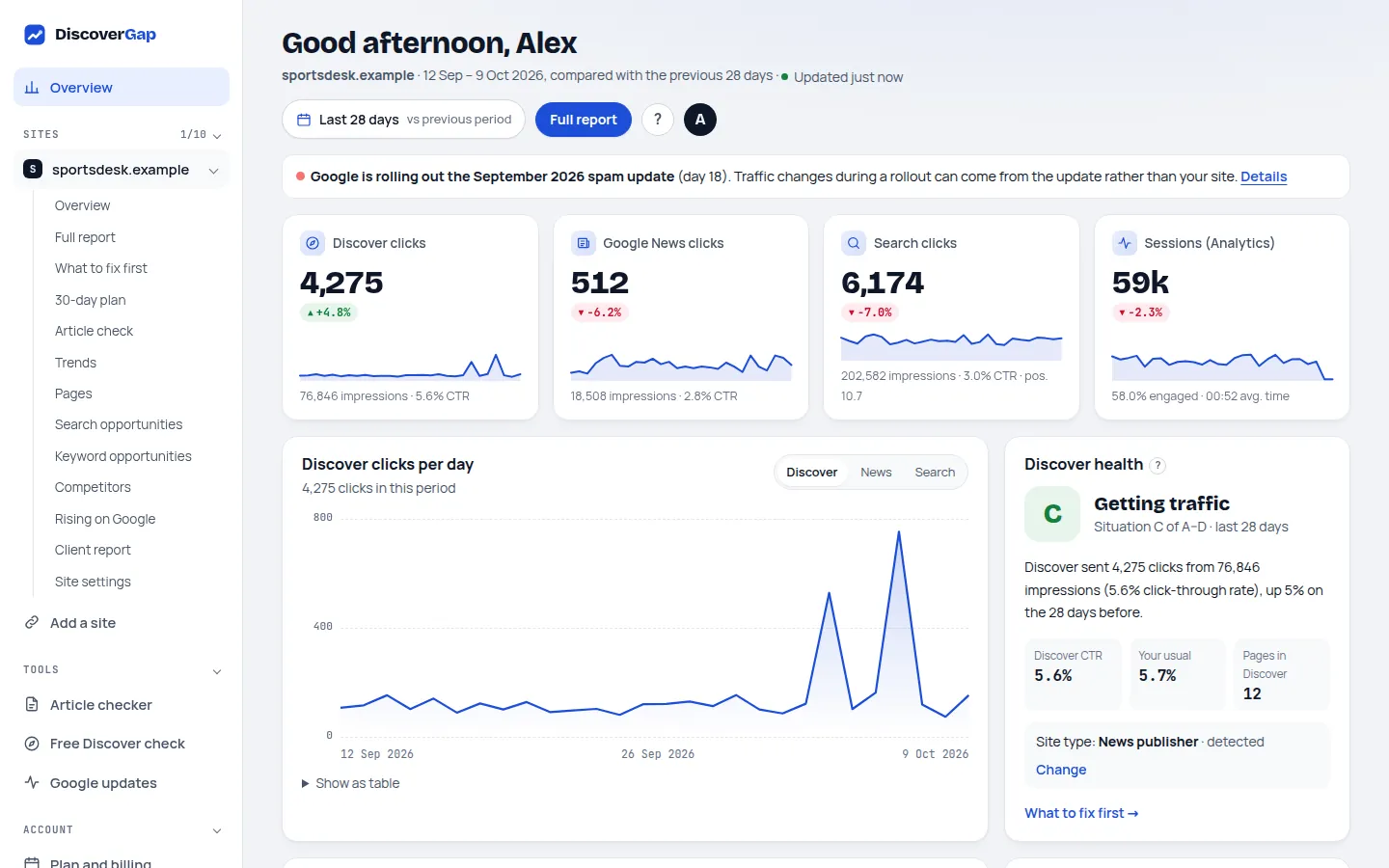
Your Overview opens with a short guided tour of the page. At the top, the Today card says in one line what is happening with your Discover traffic and lists up to three things worth doing next. Below it are your clicks from Discover, Google News and Search, a day-by-day chart, and your Discover status: one of four, from A (not in Discover yet) to D (up and down).
A Getting started checklist sits above your figures until you've tried the main parts of DiscoverGap: reading the full report, ticking off a plan task and, if you like, adding Google Analytics. You can hide it any time.
Free and paid
On the free plan you can run the free Discover check once a month for one site. Paid plans keep your figures updated twice a day and add the full report, the 30-day plan, competitor checks and keyword opportunities. See pricing.
Tip: the ? button at the top of every page in your account opens the tour for that page, its guide, and a way to ask us anything.
Last updated 24 October 2026