Getting started
Connect Search Console and Analytics
Read-only access, which account to use, and how to disconnect.
On this page
DiscoverGap reads your figures from Google Search Console, and optionally Google Analytics 4, with read-only access. We can never change anything in your Google account or on your site.
Connect Search Console
- Open the Sites pageGo to Sites and find Connect Google Search Console.
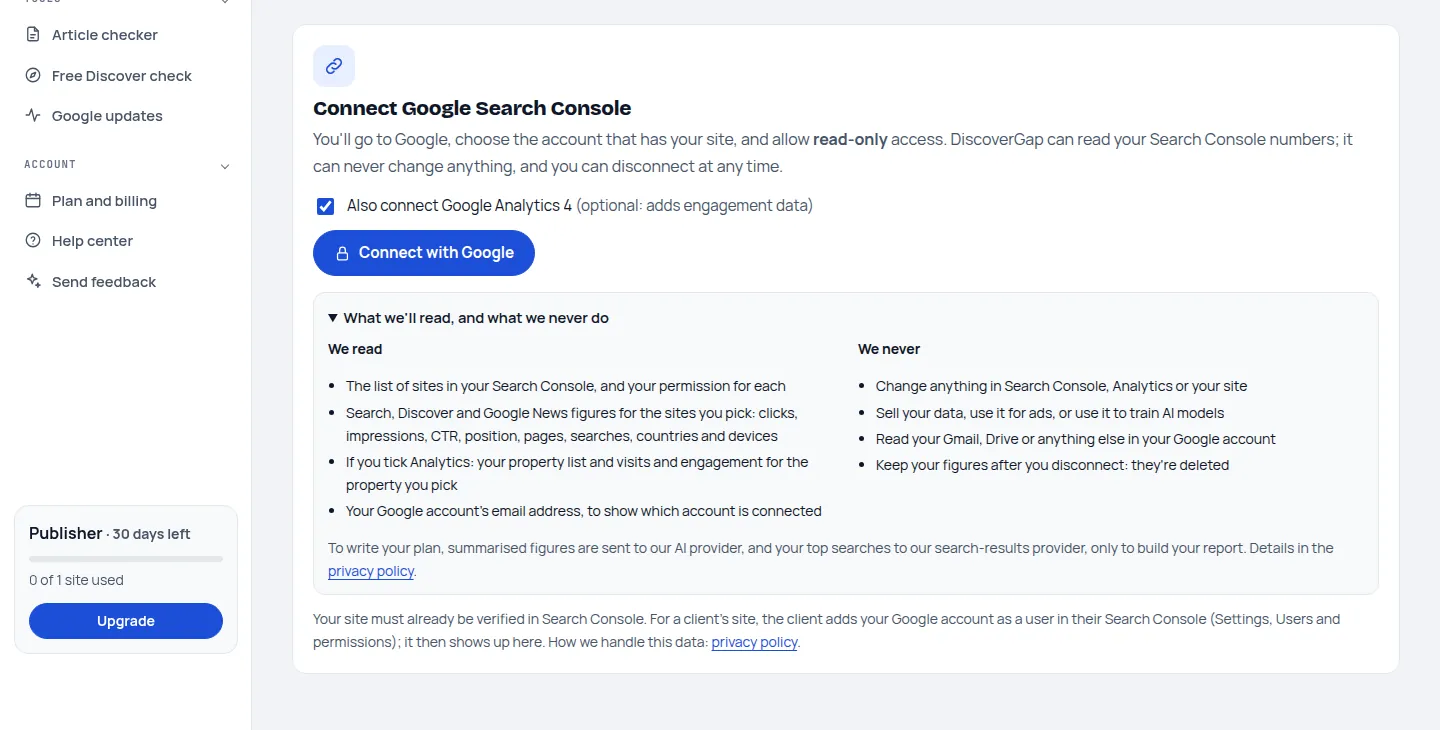
- Choose Analytics or notLeave Also connect Google Analytics 4 ticked to add visits and engagement to your reports, or untick it to share Search Console only.
- Click Connect with GoogleGoogle asks which account to use. Pick the one that can see your site in Search Console.
- Allow read-only accessGoogle lists exactly what you're sharing: "View Search Console data for your verified sites" and, if ticked, "See your Google Analytics data". Tick the boxes and click Continue.
- Pick your siteYou're back on the Sites page with your Search Console sites listed. Add the one you want.
Which Google account to use
Use the account that is an owner or user of the site in Search Console. If your site is a Domain property (for example sc-domain:example.com), we read the whole domain, including every subdomain and both http and https.
You can connect more than one Google account, for example your own and a work account. Each site remembers which account it reads from.
Adding Google Analytics later
If you didn't tick Analytics, connect again with the box ticked; Google asks only for the extra access. Then choose the property on your site's card. You need at least the Viewer role on the property.
Disconnect or remove a site
- Remove a site: on its card, click Remove. Its figures are deleted.
- Disconnect a Google account: click Disconnect next to the account. We ask Google to cancel our access straight away and delete that account's sites and figures.
- You can also remove our access in your Google account under Security, Third-party apps and services.
Common problems
- My site isn't listed. The Google account you chose can't see it in Search Console. Connect the right account, or ask the site's owner to add you under Search Console Settings, Users and permissions.
- "Access needs renewing". Google stopped our access, for example after a password change. Click Reconnect; nothing is lost.
- No Discover figures. Google only shows Discover in Search Console once a site passes a minimum number of impressions. Your report still shows Search and Google News.
Last updated 24 October 2026